
Your Owner Portal
Statements, transactions, inspection photos, repair approvals and year-end 1099s, all in one secure place, any hour of the day, from your phone or computer.
Questions? Call 903-595-0000. A real person in Tyler answers.

Portal tour
Finding Your Way Around
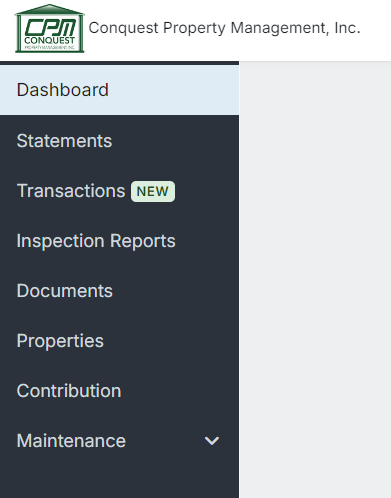
Conquest runs its accounting and owner reporting on AppFolio, so your portal shows the same records our team works from every day. Everything lives in the menu on the left side of the screen.
The Dashboard is your home screen: money in, money out, what you contributed, what we sent you, your latest statement packet, rent collected this month and how many units are occupied. Use the Property and Date menus at the top to narrow it down, or click Customize to rearrange it.
-
Statements
Every statement packet, newest first
Each packet covers a date range and includes your owner statement, work orders and copies of the bills we paid. Open the owner packet on its own, click a single bill, or download the full packet. If you own through more than one entity, each one has its own list.

-
Transactions
Every dollar in and out
Totals for cash in, cash out and owner disbursements sit at the top, with every transaction listed below: rent received, repairs paid, deposits and your owner payments. Look for the download icon to open the invoice behind a charge.

-
Inspection Reports
See what we saw, room by room
Move-in, move-out and routine inspections are organized by room. Each item is marked OK or flagged for follow-up with a note, and the photos are right there. Click Download Inspection to save a copy for your records.

-
Properties
Your properties at a glance
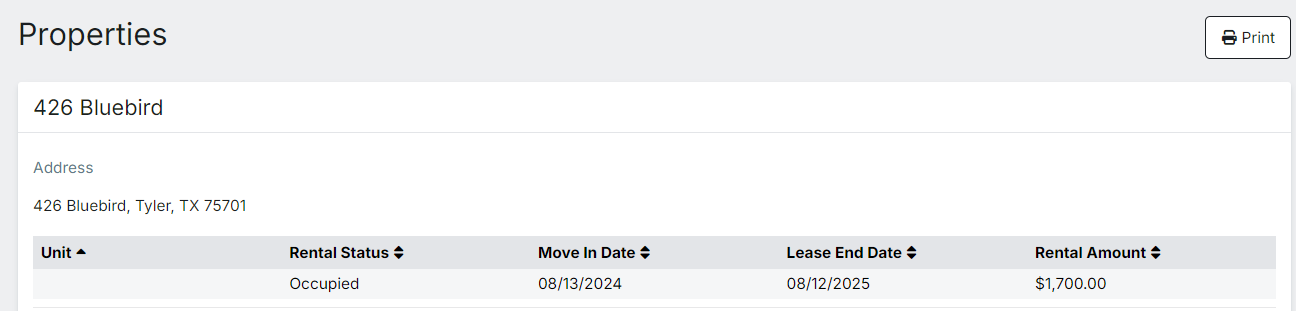
Each property you own with us, with occupancy status, move-in date, lease end date and monthly rent. Any reserve we hold for the property shows next to the address. Click Print for a paper copy.
-
Maintenance
Approve repair estimates online
When a non-emergency repair is over $500, we ask for your approval first. Open Maintenance, then Estimate Approvals, read the job description and any comments or photos, choose a vendor estimate and click Submit. If the job needs a contribution from you, the amount is shown before you approve.

First time
How to Activate Your Owner Portal
Setup takes about five minutes. Have two things handy: the email address we have on file for you, and a phone that can get a text or a call.

Check your spam or junk folder first. Still nothing? Call 903-595-0000 and we will confirm the email on your owner record and send it again.
-
Open the email from Conquest
Look for an activation email, or a notice that something new is ready in your portal. Click Activate Now. You can also click "create your password" on the login screen.
-
Confirm your email address
Your email on file is usually filled in for you. Go back to your inbox, open the confirmation message and click Confirm my email.
-
Create your password
Choose a secure password, check the box to accept the Terms of Service and click Create an account.
-
Add your phone for two-factor security
Enter a phone number and choose a text or a call, then type in the code you receive. Check "remember this device" to skip the code for 30 days.
-
Log in and bookmark this page
Enter your email and password and click Log in. Bookmark this page so the login button is always one click away.
How to
Handy Things to Know
Customizing your dashboard
Click Customize to add, remove, move or resize widgets, then Save Changes. Your layout follows you to every device. Restore to Default starts over.
Running a report
Pick a report, choose a property and dates (leave property blank for all of them) and click Update. Then search it, print to PDF or export to Excel or CSV.
Updating your bank account
Click your name in the top right, choose Settings, then Bank Account Settings. Update your routing and account numbers, agree to the terms and save. We are notified automatically.
Making a contribution
Open Contribution, choose the property, enter the amount and pick card or eCheck (ACH). A processing fee is shown before you submit, and you get an email confirmation.
Missing a menu item you see here? Some features are switched on from our side. Give us a call and we will set it up.
Owner Portal FAQ
Where do I log in to the Conquest Owner Portal?
Use the Log In button at the top of this page, or the Owner Portal link at the top of every page on conquestrentals.com.
I forgot my password. What do I do?
Click the forgot password link on the login screen and follow the email instructions. If you no longer have the email on file, call us at 903-595-0000 and we will update it.
How do I approve a repair?
Open Maintenance, then Estimate Approvals. Choose the vendor estimate you want and click Submit. We get notified right away and schedule the work.
I own properties under more than one LLC. Why do I only see one?
Your portal is tied to your email address. When every owner record uses the same email, all of your entities show up in one portal. If one is missing, call us and we will match them.
Why do I need a phone code to log in?
Two-factor security protects your financial information. Even if someone learned your password, they could not get in without the code sent to your phone.
Can I use a landline or Google Voice for the code?
Yes. A landline works with the phone call option. Text codes need a number that can receive texts. Google Voice works for either and is handy when you travel.
I lost the phone I use for my login code.
Call our office at 903-595-0000 and we will help you reset it.
Where do I find my 1099?
Year-end 1099s are posted to the Documents section of your portal.
A number on my statement looks wrong.
Call us. A real person at Conquest will walk through it with you, line by line if needed.
Questions About Your Portal?
You are not calling a software company. You are calling us, here in Tyler, and a real person answers.